Overview
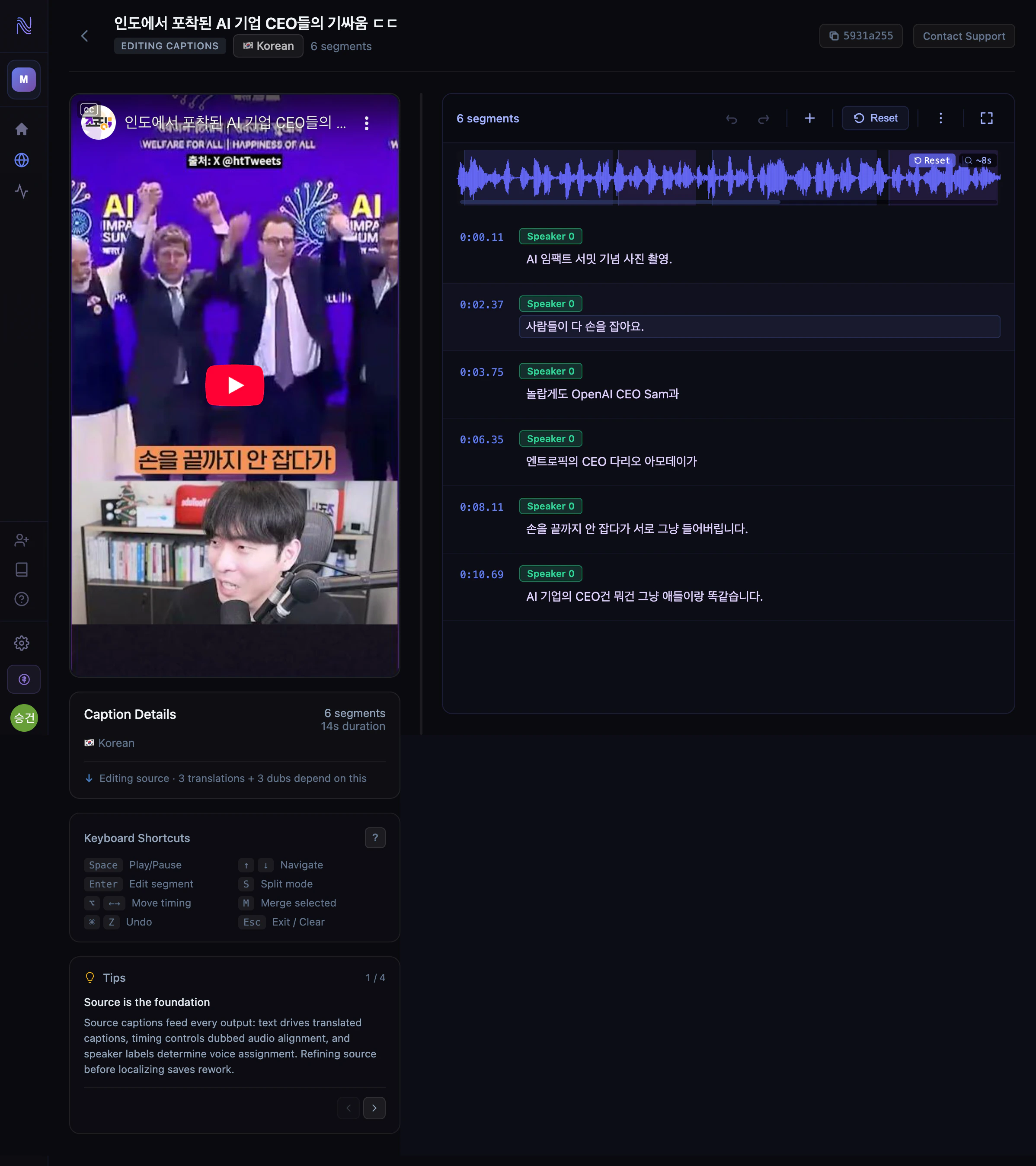
The caption editor lets you review, correct, and refine captions for any language — source or translated. Every edit is non-destructive: changes save as a new version without overwriting the AI-generated original. The editor supports 50-level undo, split mode, find & replace, speaker management, and extensive keyboard shortcuts.
Opening the editor
From the video workspace, click on any language track to open the editor. The video player syncs with the active caption segment, and the waveform displays the audio timeline.
Editing basics
- Click any caption segment to select it
- Press Enter to start editing the text
- Press Esc to stop editing and return to navigation
- Changes save automatically as you work
Keyboard shortcuts
The editor is designed for keyboard-driven workflows. Press ? to open the full shortcuts dialog at any time.
Navigation
Editing
Timing
Speakers & Issues
| Shortcut | Action |
|---|
| ↑ / ↓ | Move selection up/down |
| Shift + ↑ / ↓ | Extend selection (multi-select) |
| [ / ] | Seek to segment start / end |
| ; / ‘ | Nudge playhead ±10ms (hold to accelerate) |
| - / = | Nudge playhead ±100ms (hold to accelerate) |
| ← / → | Seek ±1 second |
| Esc | Clear selection or exit editor |
| Shortcut | Action |
|---|
| Enter | Edit selected segment |
| S | Enter split mode |
| M | Merge consecutive segments |
| Delete | Delete selected segments |
| R | Reset text edits to original |
| Shift + R | Unsplit (reverse all splits) |
| Shift + N | Insert new segment after selection |
| Ctrl/⌘ + Z | Undo |
| Ctrl/⌘ + Y or Ctrl/⌘ + Shift + Z | Redo |
| Shortcut | Action |
|---|
| Set segment start to playhead | |
| Set segment end to playhead | |
| Alt + ← / → | Slide segment timing (hold to accelerate) |
| Shift + Alt + ← / → | Adjust segment end time |
| Ctrl + Alt + ← / → | Adjust segment start time |
| Shortcut | Action |
|---|
| T | Reassign speaker |
| Shift + T | Rename speaker |
| X | Toggle skip translation |
| Shift + X | Toggle skip dubbing |
| I / Shift + I | Jump to next / previous issue |
| Q | Mark issue resolved |
| Ctrl/⌘ + Q | Ignore issue |
Hold timing shortcuts (;, ’, -, =, Alt + arrows) to accelerate — the editor ramps up to 10× speed the longer you hold.
Split mode
Split mode lets you divide a caption segment at any word boundary. This is useful when one segment contains two sentences, or when you need finer timing control.
- Select a segment and press S to enter split mode
- Use ← / → to position the split cursor between words
- Press Enter or Space to split at the cursor
- Press Esc to cancel and exit split mode
Find & Replace
Press Ctrl/⌘ + F to open Find & Replace. This searches across all segments in the current caption track — useful for correcting repeated errors like mistranscribed names.
Version switching
Every save creates a new caption version. Use the version selector in the editor header to switch between versions — including the original AI-generated captions and any manual edits.
Saving
Changes save automatically. Press Ctrl/⌘ + S to force an immediate save. The editor maintains a 50-level undo history within each editing session.
Other actions
| Action | How |
|---|
| Fullscreen | Press F to toggle fullscreen editor mode |
| Playback speed | Alt + ↑ / ↓ to increase / decrease playback speed |
| Save | Ctrl/⌘ + S to flush pending changes |